
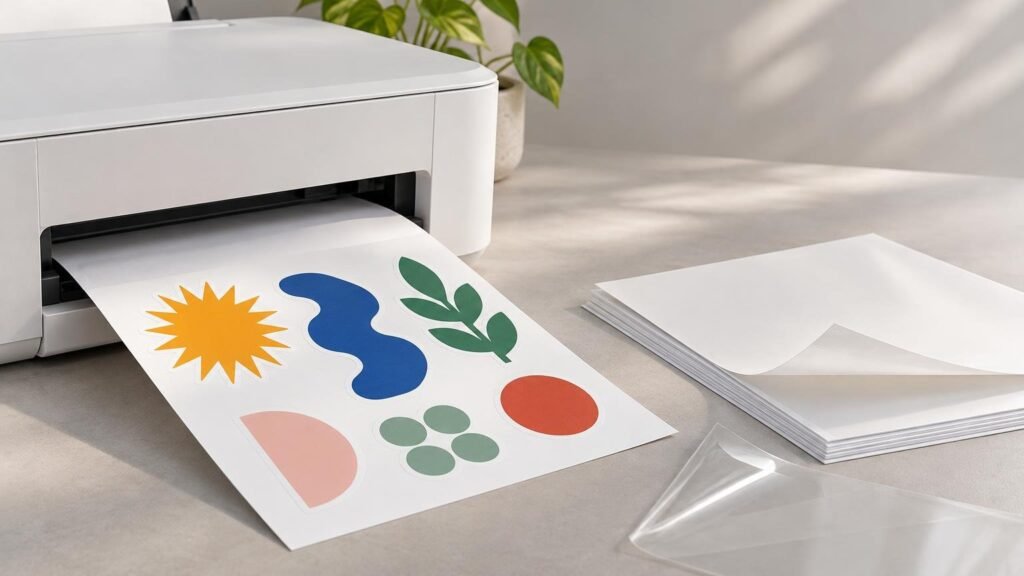
To print on vinyl sticker paper, first match the sheet to your printer, load one flat sheet with the printable face oriented correctly, select a glossy or photo-paper setting recommended by the material maker, and run a small test. Let the ink dry before cutting or laminating. The most common failures—smearing, banding, feeding problems and muddy color—usually come from incompatible material, too much ink, curled sheets or rushing the finishing step.
TLDR: The clean-print checklist
- Confirm that the vinyl is made for your printer type; do not assume an inkjet sheet is laser-safe.
- Identify the printable face and load it in the correct orientation for your printer’s feed path.
- Flatten curled sheets and feed them individually when the instructions recommend it.
- Run a nozzle check before using an expensive sheet.
- Start with the material maker’s suggested glossy, photo, high-quality or best-quality setting.
- If the ink pools or smears, reduce the quality setting rather than adding more ink.
- Let the print dry completely before cutting, stacking or applying laminate.
- Test one finished sticker on the intended surface before producing the full batch.
Choose printable vinyl that matches the printer
“Vinyl sticker paper” is a convenient shopping term, but many products are actually printable plastic film on a release liner rather than conventional paper. What matters is the coating on the printable face. It must accept the ink system in your printer.
Read the sheet packaging before printing. Cricut, for example, specifies inkjet printing for its printable vinyl and warns that laser-printer heat can damage the material or printer. That warning applies to that product, not automatically to every printable film, so check both the sheet instructions and your printer’s supported media before loading anything.
| Question | What to check | Why it matters |
|---|---|---|
| Inkjet or laser? | The compatibility stated by the sheet manufacturer | An incompatible coating may smear, fail to fuse or be damaged by heat. |
| Matte or glossy? | Available printer media settings and the desired appearance | Glossy stock can show richer color but also makes ink pooling and scratches more obvious. |
| White or clear? | Artwork opacity and the application surface | Desktop printers normally rely on the sheet or surface for white areas. |
| Laminated or unlaminated? | Water, handling, sunlight and abrasion | A compatible overlay protects the printed face and can change the finish. |
| Full sheet or precut? | Printer feed path and cutting method | Full sheets suit cutting machines; precut shapes demand tighter alignment. |
White printable vinyl is the forgiving choice for a first project because it gives colors a consistent background. Clear and metallic sheets require more deliberate artwork. Cricut notes that light colors can disappear against metallic printable vinyl, and it provides different cut settings for specialty and transparent variants.
Prepare the file and printer
Build the artwork at its final printed dimensions. Small type, thin borders and narrow gaps become less forgiving after cutting, especially if a desktop cutter drifts slightly. For a deeper setup checklist, use our guide to preparing sticker artwork, resolution and cut lines.
Before inserting the vinyl, print the design on ordinary paper. Confirm its physical size, margins and orientation, then hold that proof over the vinyl sheet. This cheap rehearsal catches reversed loading, accidental scaling and artwork placed outside the printer’s usable area.
Run a nozzle check as well. Siser’s printable-vinyl instructions specifically recommend a nozzle test and feeding one sheet at a time, followed by testing before production because results vary among printers and inks. Siser’s printable-vinyl data sheet provides the material-specific workflow.
Flatten any curled corners without sharply bending the sheet. The Canon GX3000 printer manual advises flattening curled media, positioning the guides without pinching the sheet, and matching the registered paper size and media type to the loaded stock.
How to print on vinyl sticker paper step by step
- Identify the printable side. On Cricut printable vinyl, the blank front is printed while the marked liner remains on the back. Your product may use a different marking system, so verify it before loading.
- Determine which way the printer pulls and flips the sheet. Mark one side of an ordinary page, run a test print, and observe where the image lands if the feed direction is unclear.
- Load one flat vinyl sheet. Use a rear or bypass feed when the printer and material instructions call for it, particularly with thick stock. Cricut advises single-sheet or manual feeding for thicker printable materials when appropriate.
- Select the correct size and media type in both the application and printer driver. Do not rely only on what appears in the design software.
- Begin with the recommended glossy paper, photo paper, high-quality or best-quality setting. Those are documented starting points for the reviewed Cricut and Siser materials.
- Print one test sheet and inspect solid colors, small text, gradients and dark areas before committing the remaining vinyl.
- Place the sheet on a clean, level surface and leave the printed face untouched while it dries.
- Apply a compatible self-adhesive laminate if the project needs added surface protection, then cut the completed sheet using the setting intended for its total thickness.
Adjust the settings when more quality creates more mess
A high-quality setting prints more slowly and generally lays down more ink. That can improve color and reduce streaking, but it can also overwhelm a coating that cannot absorb the volume quickly enough. Cricut recommends dropping from a best-quality setting to “good” if excess ink causes smudging.
Change one variable at a time. If the first test is wet or muddy, reduce print quality before making broad color adjustments. If it has horizontal gaps or incorrect color, inspect the nozzle check. If the sheet feeds crooked, correct the curl, guides and feed path rather than trying to compensate in the artwork.
Drying and laminate are separate steps
A print can look dry while still being vulnerable to fingerprints or pressure marks. Cricut instructs users to let printable vinyl dry, while Siser specifies five minutes for its material. Follow the time stated for your sheet and allow longer if the surface still feels tacky or the room is humid.
Laminate is an optional protective film, not a cure for wet ink or incompatible vinyl. Apply it only after drying. Cricut’s waterproof sticker system uses printable vinyl as the lower layer and a laminating sheet as the upper layer, with printing, drying and lamination completed before cutting.
Even a laminated sticker should be matched to its exposure. Cricut says its waterproof set blocks UV light but notes that fading still varies with ink formulation, and it recommends handwashing decorated items because dishwasher heat and detergent may shorten sticker life. For bottles, outdoor gear or other demanding surfaces, our guide to waterproof and high-moisture stickers explains why ink, film, adhesive and protection all matter.
Cut and apply without damaging the print
Match the cutter setting to the exact vinyl and laminate combination. A setting that kiss-cuts bare matte vinyl may not penetrate a thicker laminated stack, while too much pressure can slice through the liner and scar the cutting mat.
Peel the finished sticker from its liner and apply it directly to a clean, smooth surface. Cricut does not recommend transfer tape for its printable vinyl because the tape may lift the printable coating. Transfer tape remains useful for other products, particularly cut lettering, but it is not automatically appropriate for a printed sheet.
When home printing is—and is not—the right solution
Home-printable vinyl is a good fit for prototypes, craft projects, short personalized runs and designs that may change after the first test. It gives you immediate control, but you also take responsibility for color, cutting alignment, lamination and material compatibility.
For larger quantities, retail merchandise or stickers that need repeatable cuts and durable finishing, ordering professionally printed custom vinyl stickers can remove much of that production variability. Home printing is most valuable when speed and experimentation matter more than identical results across a long run.
The practical recommendation
Start with white inkjet-compatible printable vinyl from a manufacturer that provides settings for your printer and cutter workflow. Print one nozzle-check pattern, one paper proof and one vinyl test before using the rest of the pack. Let that test dry, finish it exactly as the final stickers will be finished, and apply it to the real surface. If the color, adhesion and cut survive that small trial, proceed with the batch; if not, fix the specific failure before spending another sheet.