
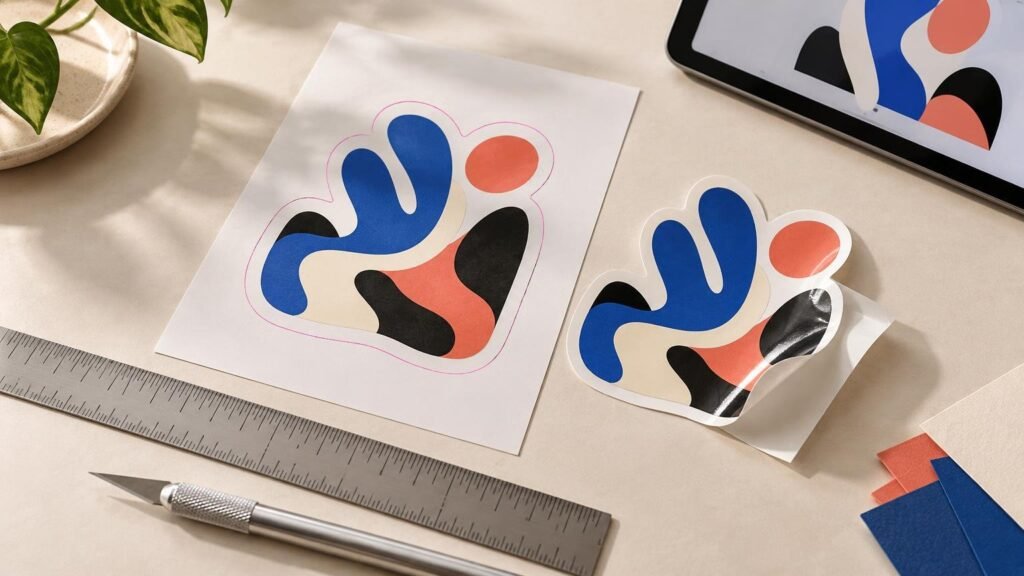
TLDR: If you want to know how to prepare sticker artwork for printing, begin with the final ordered size and the printer’s current template. Use vector artwork where possible or a high-resolution raster image at final size, extend backgrounds through the required bleed, keep important details inside the stated safe area, and follow the printer’s exact cut-path and color instructions. Inspect the proof at actual size before approving it.
The most important lesson in how to prepare sticker artwork for printing is that the sticker product comes first. A square white-vinyl sticker, a clear die cut and a holographic sticker may require different files even when they use the same illustration. Decide the size, shape, material and finish before building the final production file.
Most failed artwork is not wildly broken. It is simply mismatched to the order: a small image enlarged too far, a background that stops at the cut line, text placed too close to an edge or a transparent design prepared without considering how it will look on the application surface. A short preflight catches these problems before they become physical stickers.
The print-ready sticker artwork checklist
- Set the art to the final ordered dimensions and confirm its orientation.
- Use vector artwork for logos, type and simple graphics when possible.
- Check raster resolution at the final printed size rather than at an arbitrary document size.
- Download the printer’s current template or artwork instructions.
- Extend edge-to-edge backgrounds through the printer’s required bleed.
- Keep text, logos, faces, QR codes and other critical details inside the stated safe area.
- Follow the printer’s requested RGB, CMYK or profile-based color workflow.
- Use the supplier’s exact cut-path naming, color and layer conventions if a custom path is required.
- Embed linked images and handle fonts according to the requested export method.
- Review the proof for size, shape, border width, material, finish, spelling and version.
Start with the sticker you are ordering
Before opening an export dialog, write down four things: final size, shape, material and finish. These choices control how the design should be prepared.
Final size means the physical dimensions of the finished piece, not the dimensions of the design on your monitor. Artwork should also match the proportions of the order. A 3-by-2-inch design and a 3-inch square sticker do not share the same aspect ratio, so the printer may need to crop the artwork, add space or change the ordered size. StickerGiant, for example, asks customers to match artwork dimensions to the ordered dimensions and warns that proportion mismatches can require adjustment.
Shape affects the composition as much as size. A circular sticker usually needs a different arrangement than a rectangle. An irregular die-cut sticker needs enough room around narrow points and detailed contours to create a practical finished piece. If you want a visible white border, treat it as an intentional design element and check its width around the entire proof.
Material matters because the surface may become part of the artwork. Clear material can reveal the bottle, window or laptop underneath. Metallic and holographic materials can show through selected areas. Fluorescent products may use a bright physical material or a specialized ink rather than ordinary process color. For those effects, use the chosen printer’s product-specific setup instructions; our guide to neon sticker printing and proofing explains why a vivid screen color is not automatically a fluorescent printed result.
Use vector artwork when it fits the design
Vector files describe shapes mathematically, so a clean logo, icon or piece of lettering can be resized without becoming pixelated. That makes vector artwork the best starting point for many custom stickers made from logos or simple illustrations. StickerGiant also distinguishes vector files from raster artwork when explaining resolution requirements.
Raster artwork is built from pixels. Photographs, painted illustrations and textured digital art are normally raster images, and they can print beautifully when enough image data exists at the finished size. Problems appear when a small web graphic, profile image or screenshot is enlarged for printing. Increasing the resolution number in software does not recreate the missing detail; it can produce a larger file without producing a genuinely sharper image.
| Artwork type | Best use | Main advantage | Main check |
|---|---|---|---|
| Vector | Logos, lettering, icons and flat illustration | Scales cleanly | Confirm fonts, effects and linked images are handled correctly |
| High-resolution raster | Photos, paintings and textured illustration | Preserves pixel-based detail | Check effective resolution at final print size |
| Transparent PNG | Simple artwork when the printer accepts PNG | Retains transparent surroundings | Confirm final dimensions, resolution and transparency behavior |
| PDF or PDF/X | Packaged print handoff when accepted | Can preserve vectors, fonts and color information | Use the exact PDF standard and settings requested by the printer |
Do sticker designs need to be 300 dpi?
For raster artwork, 300 pixels per inch at the final printed size is a practical high-quality baseline. Adobe identifies 300 ppi as a standard figure for high-quality printing, and StickerGiant specifies 300 dpi for its raster artwork. The key phrase is “at final size.” A 900-by-900-pixel image can provide 300 pixels per inch at 3 by 3 inches, but not at every larger size.
DPI and PPI are often used interchangeably in upload instructions, although they technically describe different things. For artwork preparation, focus on the pixel dimensions and the physical output size. Check the effective resolution after placing or scaling the image in the final layout.
Do not add pixels merely to satisfy a number. If a logo is too small, locate the original vector file or request one from the designer. If only a raster version exists, keep the sticker smaller, simplify the artwork or have the logo properly redrawn instead of applying aggressive sharpening.
Understand the cut line, bleed and safe area
Three boundaries control the sticker edge. They solve different problems and should not be treated as interchangeable.
| Boundary | What it represents | What belongs there | Common mistake |
|---|---|---|---|
| Cut or trim line | The intended finished edge | The planned sticker silhouette | Treating it as a guaranteed pixel-perfect boundary |
| Bleed | Artwork extending beyond the finished edge | Background colors, photos and patterns meant to reach the edge | Stopping the background exactly at the cut line |
| Safe area | Protected space inside the edge | Text, logos, faces, QR codes and essential details | Placing critical content too close to the cut |
Bleed protects an edge-to-edge design from showing an unintended sliver of unprinted material after cutting. The required amount is provider-specific. StickerGiant currently asks for a 1/8-inch bleed on backgrounds that are not white or transparent, but that is its requirement—not a universal sticker-printing rule. Use the measurement in your selected printer’s current template.
A safe area works in the other direction. It keeps important content far enough inside the cut that normal production movement does not make it look cramped or clip it. Follow the supplier’s stated clearance rather than inventing a universal margin. Give extra visual breathing room to small text, thin borders, faces, barcodes and QR codes.
Thin borders deserve special attention because minor movement is easier to notice when a line is expected to remain perfectly even. A slightly thicker border, an intentionally irregular border or a borderless design is often more forgiving than a hairline frame.
Build a cut path only when the printer asks for one
A cut path is a vector contour telling production equipment where the sticker should be cut. Some ordering systems generate the contour from a transparent image. Others ask for a separate path, a particular template or staff instructions describing the intended shape.
Do not assume that every printer uses the same spot color, swatch name or layer name. StickerGiant, for example, documents its own non-printing 100% magenta convention for a cut line. That example demonstrates why copying a generic online recipe can create confusion: another supplier may require a differently named path or may not want customers to add one at all.
If you do create the contour, keep it smooth and deliberate. Too many anchor points can produce a lumpy edge. Remove tiny notches and accidental interior paths unless the product specifically supports them. For lettering or complex illustrations, an offset contour can create a sturdier silhouette than tracing every small gap.
Prepare color for the printer, not just the screen
There is no responsible universal answer to “RGB or CMYK?” Adobe’s guidance for commercial printing notes that providers may request RGB files with embedded profiles, CMYK artwork or a PDF/X workflow. Adobe’s commercial-print preparation guidance explains these different handoff approaches. Follow the printer’s requested color space and profile rather than converting by habit.
Bright RGB colors can change when converted for process printing because RGB has a wider color gamut than CMYK. Highly saturated blues, greens and neon-like colors are common trouble spots. If close color matching matters, ask what profile or proofing method the printer supports. A calibrated workflow or physical sample is more informative than comparing the sticker with an uncalibrated phone display.
Material changes color expectations too. Clear stock may make unprinted areas transparent, and printed colors can look different without an opaque white base. Metallic or holographic effects may show through colors unless white ink blocks them. When using these materials, ask for the product’s white-ink or underprint instructions before finalizing the layers.
Choose the file format the printer can use
The best file format for vinyl stickers is the format your selected printer requests and that preserves the artwork correctly. For editable logos and line art, a vector-capable file is usually the strongest master. For pixel artwork, a high-resolution raster file may be appropriate. You can then export the delivery file requested by the order system.
A transparent PNG can work when the printer accepts it, particularly for a simple die-cut design with a clearly defined transparent exterior. Confirm that it has adequate pixel dimensions at final size. Also inspect semi-transparent shadows and soft edges: they may not produce the contour or printed appearance you expect.
PDF/X is a family of print-exchange standards designed to make print files more self-contained, including requirements related to fonts and output intent. It does not create universal bleed or image-resolution rules. PDF/X-4 can preserve live transparency, while earlier variants impose different transparency limitations, so confirm which variant the printer accepts before exporting.
Font handling also depends on the workflow. A template provider may ask you to outline or rasterize type, while a PDF/X workflow can use embedded fonts. StickerGiant’s template instructions request outlined or rasterized fonts and embedded images; PDF/X has its own embedded-font requirements. Keep an editable master file, then follow the printer’s requested handoff method.
Review the sticker proof at actual size
The proof is the moment to catch production misunderstandings. Zooming in helps reveal rough paths, but zooming out to the physical dimensions reveals whether the design is actually readable. A line that looks elegant at 500% may disappear when the sticker is two inches wide.
- Confirm the stated finished width and height.
- Check that the orientation and proportions match the order.
- Inspect the exact cut shape and any visible border.
- Look for unexpected white or transparent areas.
- Read every line of copy and verify names, dates, URLs and contact details.
- View small text and fine details at approximate actual size.
- Check that essential elements have comfortable clearance from the edge.
- Confirm that the proof represents the intended material and finish.
- Verify any clear, metallic, holographic or white-ink behavior.
- Make sure you uploaded the final version rather than an older draft.
- Confirm the quantity and product format before approval.
If the border looks uneven, the contour clips part of the design or the proof shows a white halo you did not intend, request a correction. Proof approval should confirm what will be produced, not merely that a file was received.
A practical workflow from logo to finished order
- Choose the final sticker size, shape, material and finish.
- Download the current artwork template or instructions for that exact product.
- Place the original vector logo or highest-resolution artwork into the document.
- Set the composition at final size and correct any aspect-ratio mismatch.
- Add the required bleed and move critical content inside the safe area.
- Create a cut path only if the provider’s workflow requires it.
- Apply the requested color mode, profile and specialty-material layers.
- Export in an accepted format while preserving a separate editable master.
- Upload the file and inspect the generated or emailed proof at actual size.
- Approve only after the dimensions, contour, content, material and finish all match the intended sticker.
This same process works whether you are preparing an artist illustration, packaging logo or custom stickers from your artwork or logo. The production instructions may change, but the order of decisions should not: define the physical sticker first, prepare the artwork for that product and treat the proof as the final preflight.
Final recommendation
Start by requesting or downloading the current template for the exact sticker you plan to order. Build at final size, preserve vectors where appropriate, check raster art at its effective output resolution and use the provider’s own bleed, safe-area, color and cut-path rules. Then inspect the proof at actual size. That last check is where a digital design becomes a practical sticker—and where most avoidable mistakes can still be fixed.