
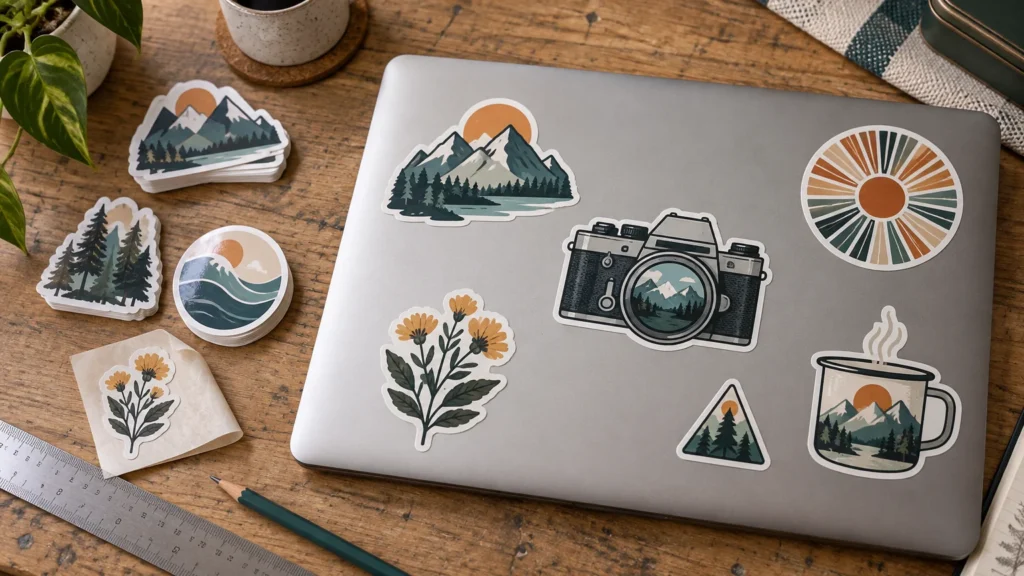
TLDR: To learn how to customize laptop stickers, start with the closed laptop lid, choose one visual direction, measure the usable space and mock up every sticker at full size before ordering. A single 3- to 4-inch hero decal or a coordinated group of three to five smaller stickers is the easiest layout to control. Choose removable adhesive if you expect to change the design, laminated vinyl for regular handling, and a finish that suits both the artwork and the laptop surface.
The best laptop sticker layouts look collected without looking accidental. You do not need every sticker to share the same shape or color, but they should have a relationship: one subject, a repeated palette, similar border treatment or a clear visual hierarchy. That is the practical answer to how to customize laptop stickers without turning the lid into an unreadable patchwork.
Choose a customization route first
There are three useful ways to build the design. You can curate ready-made stickers, order your own artwork from a professional printer or produce a small DIY batch on printable material. The right route depends on how specific the idea is and how polished you want the result to feel.
- Curated ready-made set: Best when you want an evolving collection of artist, band, travel or developer stickers. Cohesion comes from your selection and layout rather than identical production.
- Professionally printed custom set: Best for original artwork, matching borders, consistent color and precise shapes. This is the strongest route for a personal logo, coordinated coding stickers or a small themed pack.
- DIY printable stickers: Best for quick experiments, one-off jokes and layouts you want to revise immediately. Cutting accuracy, ink durability and material thickness depend on the supplies and equipment.
For professionally printed standard stickers, our testing gives custom die-cut stickers from CustomStickers a strong overall case: the company earned 5/5 for quality and 5/5 for price/value in our evaluation. If unusual effects matter more than the best all-around standard-vinyl result, our CustomStickers versus StickerApp comparison explains why StickerApp is the more interesting specialty-material choice.
Build a theme without making every sticker identical
A theme is a design constraint, not necessarily a single subject. Programmer laptop stickers, for example, can combine a terminal prompt, an abstract bug, a tiny keyboard diagram and an inside joke. They feel related if they repeat the same two or three colors, line weight and border style.
A minimal layout usually needs one dominant sticker and one or two supporting pieces. A fuller layout can use more designs, but it still benefits from hierarchy. Pick one sticker that should be noticed first, place medium designs around it and use small pieces to fill awkward gaps. If every sticker is equally loud, the eye has nowhere to settle.
Useful directions include monochrome developer stickers on a dark lid, retro computer graphics with a restricted warm palette, a collection of geometric symbols, or a sticker-bomb arrangement unified by white borders. Mixing subjects is fine when one visual detail repeats.
Laptop sticker sizing that works in a real layout
Measure the actual exterior lid rather than relying on the laptop’s advertised screen size. Leave out hinges, vents, seams, rubber feet and any area that moves or meets another part when the device opens. Rounded lid corners also reduce the usable rectangular space.
| Sticker role | Practical starting size | Best use |
|---|---|---|
| Small accent | About 1 to 1.5 inches | Icons, symbols and gap fillers |
| Supporting design | About 2 to 3 inches | Most coding stickers, characters and compact logos |
| Hero decal | About 3 to 4 inches | A central illustration or primary statement |
| Large composition | More than 4 inches | Simple artwork planned specifically for the lid |
These are layout starting points, not universal production rules. A 13-inch laptop may have little room around a 4-inch decal, while a larger workstation can make a 2-inch design look isolated. Text also changes the answer: a detailed command, quotation or code sample needs enough physical size to remain readable.
The simplest sizing test is to print the artwork on ordinary paper at 100% scale, cut around it and place it on the closed lid. A digital alternative is to photograph the lid straight on with a ruler in the frame, scale the photo in a design app and arrange the artwork over it. Paper is better for judging physical presence; the digital mockup is faster for testing color and spacing.
Pick the adhesive, material and finish for the laptop
Start with the exterior finish. Smooth metal and smooth hard plastic generally give a sticker a more straightforward application surface than heavily textured, fabric-covered, leather-like or soft-touch finishes. If the surface is unusual, test a small removable sticker in an inconspicuous exterior area before committing to the full arrangement.
| Choice | Visual effect | Best fit |
|---|---|---|
| Matte | Soft reflections and a printed-paper look | Illustration, muted palettes and laptops used under bright lights |
| Gloss | Higher shine and punchier surface contrast | Bold colors, photography and classic sticker aesthetics |
| Clear | The laptop color shows through unprinted areas | Minimal line art and designs intended to interact with the lid |
| Holographic | Moving rainbow reflections | Simple shapes, bold outlines and selected accents |
| Removable adhesive | Designed for easier layout changes | Work devices, rotating collections and cautious first layouts |
| Permanent adhesive | Stronger long-term commitment | Stable designs on a compatible, smooth exterior surface |
Clear and holographic materials require more artwork planning than white vinyl. Light colors and transparent areas can disappear against a dark laptop unless the printer offers an opaque white underprint. Holographic effects are most effective when the reflective material has open areas in which to show; covering the entire design with dense ink defeats much of the point.
Avery currently describes its custom laptop stickers as using removable adhesive and a waterproof laminate, illustrating that removable finished decals are available for layouts meant to change over time. For a frequently handled laptop, a laminated construction is a sensible choice because the protective layer takes the rubbing that would otherwise reach the printed surface.
Prepare custom artwork for clean printing
Design the sticker at its intended physical size. Thin details that look elegant while zoomed in can become fragile or disappear when printed at two inches wide. Small terminal text has the same problem: shorten the message or enlarge the sticker instead of squeezing a full screen of code into a tiny decal.
A clean custom file should account for the printed artwork, the final cut shape and any border you want around the design. If color runs to the cut edge, extend it beyond the intended cut so a tiny cutting shift does not expose an unprinted sliver. If the printer adds the cut line, use the proof to inspect its distance from narrow details, letters and pointed corners.
Printer requirements differ. Sticker Mule, for example, recommends vector files or raster artwork at a minimum of 300 PPI and asks for 1/16 inch of bleed when bleed is needed. It also publishes specific minimum guidance for type, lines and borders. Treat those measurements as that vendor’s production requirements and check the chosen printer’s template before uploading.
Artwork checklist before ordering
- Set every design to its intended printed dimensions.
- Use a high-resolution raster file or a vector format accepted by the printer.
- Make small type readable at actual size, not merely at screen zoom.
- Decide whether the sticker needs a white border, colored border or edge-to-edge print.
- Check whether clear or specialty material requires white ink beneath selected areas.
- Keep important details safely inside the anticipated cut path.
- Review the digital proof for scale, spelling, color placement, border width and cut shape.
When DIY printable stickers make sense
DIY production is useful when the main goal is experimentation. You can print a page, test several sizes and change the layout without waiting for another order. It is especially convenient for short-lived developer jokes, event stickers or a design you are still refining.
Match the product to your printer and cutting method rather than treating all printable vinyl as interchangeable. Cricut’s Printable Waterproof Sticker Set, for example, requires an inkjet printer and combines printable vinyl with a separate laminating sheet. It uses permanent adhesive and calls for a clean, dry application surface. That construction may suit a settled layout, but it is not the natural choice when easy removal is the priority.
Professional printing becomes more attractive when you want consistent contour cuts, multiple copies or a coordinated pack with the same finish. DIY is the better sketchbook; professional production is the cleaner final edition.
Mock up the complete laptop sticker layout
Place the largest design first, but do not automatically center it. A slight offset often leaves more useful room for supporting stickers and prevents the layout from feeling like a single logo placed on a blank panel. Pay attention to the orientation when the laptop is open: decide whether the artwork should face you on the closed lid or appear upright to someone across the table.
Keep spacing intentional. Even gaps create a tidy grid-like arrangement, while deliberate overlap creates a sticker-bomb look. Randomly alternating between touching, overlapping and widely separated pieces usually looks unfinished. Before peeling any backing, photograph the paper mockup so you have a placement reference.
Apply laptop decals cleanly
Power down and unplug the laptop before cleaning it. Follow the manufacturer’s instructions for the particular exterior finish. Apple’s official product-cleaning guidance says not to spray liquid directly onto a Mac and warns against abrasive and solvent cleaners; it permits a cloth moistened with 70% isopropyl alcohol for hard-to-remove exterior smudges. Microsoft similarly recommends a lightly dampened, lint-free cloth for specified Surface exteriors and cautions against direct liquids and harsh chemicals.
After cleaning, let the lid dry completely. A clean, dry substrate supports adhesive bonding, while contamination can interfere with adhesion. Position each sticker with its backing attached, using small pieces of low-tack tape as temporary hinges if alignment is critical. Peel a short section of backing, anchor one edge and press gradually across the design. Smooth outward with clean fingers or a soft cloth rather than dropping the entire adhesive face onto the lid at once.
- Shut down and unplug the laptop.
- Clean the exterior according to the device maker’s instructions.
- Allow the surface to dry fully.
- Rebuild the planned layout with the backings still attached.
- Apply the hero sticker first, then the supporting designs.
- Press from the anchored area outward to reduce trapped air.
- Check every edge before moving to the next sticker.
Common customization mistakes
- Ordering before measuring: Screen size does not tell you the exact usable lid area.
- Making text too small: Code, commands and slogans should be judged at printed size.
- Ignoring the laptop color: Clear areas and dark artwork can disappear against the surface.
- Mixing finishes accidentally: Matte, gloss and holographic pieces can work together, but the contrast should look deliberate.
- Covering functional areas: Keep stickers away from vents, ports, hinges, seams, feet, keyboards, trackpads and regulatory or service information you may need.
- Peeling everything at once: Finalize the arrangement before exposing adhesive.
- Starting with too many pieces: It is easier to add another sticker than to recover the clean negative space you covered.
A simple first layout to try
Begin with three pieces: one 3-inch hero design, one 2-inch supporting design and one 1-inch accent. Give them a shared color, border or subject, then arrange them as an uneven triangle with comfortable space around the group. Print a paper mockup, view it from several feet away and add another sticker only if it improves the composition.
That process works for a restrained monogram, a programmer-themed set or the beginning of a full sticker-bomb lid. Choose the theme, measure the surface, test the sizes and approve the entire layout before ordering or peeling. The result will feel personal immediately while still leaving room for the collection to grow.